If you’ve ever watched a brand’s logo come to life, the swish, the bounce, the glow-up, that little flicker that makes it feel alive, you already know how much animation changes the way people feel about a brand.
It’s funny because most people think logo animation is just “make it move,” but anyone who has sat in front of After Effects at 3 AM knows it’s never that simple. Animation is storytelling in tiny seconds. It’s sweet. It’s trial and error. to watching the same 2-second loop a hundred times until it feels right.
This guide isn’t the sugar-coated version.
This is the real one, the way actual designers talk, the mistakes we make, the easy wins, the shortcuts, the “oops, I animated the wrong layer for 40 minutes” moments.
If you want the honest, step-by-step, simple explanation of how to animate a logo, you’re in the right place.
Why Logo Animation Matters More than You Think
Before we get into the how, let’s talk about why.
Because it’s not just for fun. (Okay, sometimes it is, but stay with me.)
When your logo moves, people pay attention. A static image doesn’t have that effect. A good animation makes your brand feel:
- Modern
- Alive
- Intentional
- Confident
- Memorable
People instantly trust a brand more when they see motion design behind it.
It’s like showing your audience you took that extra step, and yes, in a world where attention lasts three seconds, that matters.

Easy Step-by-Step Guide to Logo Animation
Here are simple steps that help you turn any plain logo into a smooth, engaging animation without stress or complicated tools.
Step 1: Start With the Story, Not the Software
This is where most beginners mess up. They open the software first. Don’t do that.
Sit with the logo. Ask yourself:
- What does this brand feel like?
- What’s personality? Calm? Bold? Playful?
- Should the animation be quick or slow?
- Should it feel soft or sharp?
- Should it enter or reveal itself?
A luxury spa logo should not bounce in like a cartoon balloon. A kids’ brand shouldn’t fade in like a meditation app.
The story decides the movement. Not the other way around.
Step 2: Break the Logo into Pieces
Animation is easier when you treat the logo like a puzzle.
Open your logo file (.AI or .SVG) and separate it into parts:
- each letter
- each icon shape
- every curve
- every stroke that could move independently
If you hand a designer a logo with everything on one layer, you’ll hear a deep sigh from the other side of the screen. Trust me on that.
Every element you want to animate needs its own layer or group.
Give yourself options. Give yourself freedom.
Step 3: Choose How You Want It to Move
Now comes the fun part: imagining motion.
Here are the most common styles designers lean on:
Reveal animations
Lines draw themselves. Letters slide in. Something gently “unfolds.”
Bounce animations
Fun, playful, energetic. Perfect for kid-friendly brands or joyful businesses.
Fade & scale animations
Soft, elegant, minimal. Great for luxury or wellness brands.
Rotation or spin
Careful with this one, as it can look cheap fast unless used subtly.
Morphing animation
One shape smoothly transforms into another. Harder to execute but beautiful when done well.
Glowing/shimmering
Subtle glow effects that run across the logo like a highlight.
Pick a direction, then stick to it. A logo animation that tries to do everything ends up looking like a chaotic intro from 2008.
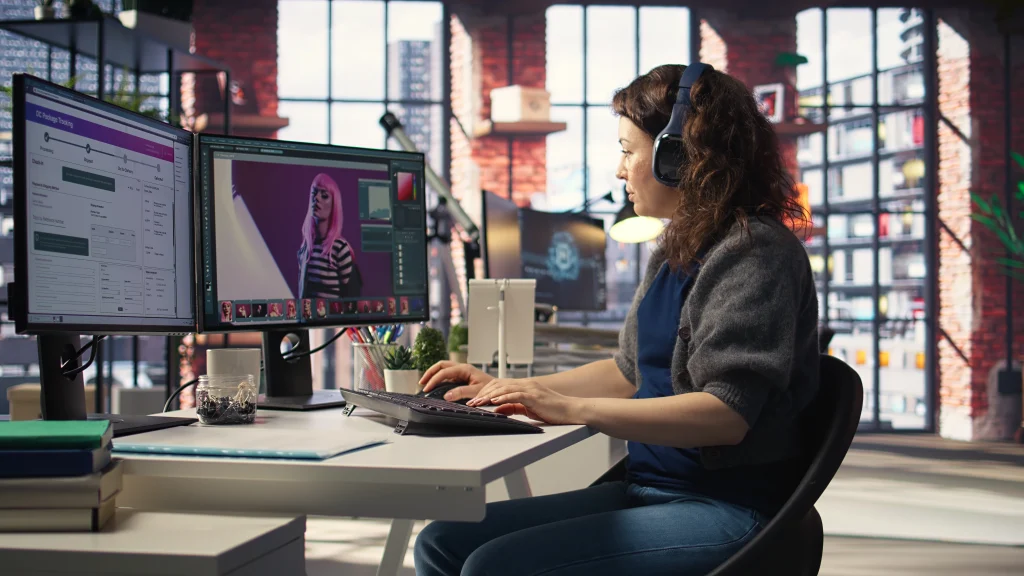
Step 4: Pick Your Tools (The Honest Recommendation)
You don’t need 10 different tools.
Most professionals use:
Adobe After Effects
The industry standard. If you want maximum flexibility, go with this. You can animate anything, literally.
Adobe Animate (less common now)
Good for frame-by-frame, but not ideal for modern logo motion.
Blender (for 3D)
Free and powerful. If you want a 3D spin, 3D glow, or depth-based animation, Blender is a beast.
Canva/Online Tools
Okay for simple fades, slides, and basic movement. Useful for beginners but limited.
Lottie / Bodymovin
For exporting animations to websites and apps. Choose your weapon. After Effects is still king.
Step 5: Animate the Entrance (Where Most Magic Happens)
Think of this like walking into a room.
Your logo needs an entrance that matches its personality.
Here are some classic entrances:
Reveal by stroke
Great for logos with line art.
Looks like the logo is being hand-drawn on screen.
Slide in from edges
Clean, modern, easy to watch.
Fade with scale-up
The soft “breathing” entrance.
Pop-in animation
Playful brands love this. It feels friendly and welcoming.
Mask reveal
The logo slides out from behind an invisible shape. Always looks smooth.
Whichever style you choose, keep the timing natural.
- Too fast feels rushed.
- Too slow feels boring.
- You’ll know when it “clicks.”
Step 6: Add Secondary Motion (This Makes it Feel Alive)
Great motion designers do one thing differently: they don’t stop after the first movement.
Secondary motion is what happens after the main action.
Examples:
- a letter settles with a tiny bounce
- a shape overshoots slightly before landing
- a glow flickers for half a second
- a dot wobbles before freezing
- the whole logo “breathes” subtly
This is the difference between “okay” animation and “damn, that’s clean.”
But don’t overdo it.
Too much secondary motion makes your logo look jittery instead of polished.
Step 7: Animate the Exit (Optional but Rewarding)
Some animations stop at the reveal.
Totally fine.
But if you want a loopable animation, animate the outro:
- fade out
- slide away
- dissolve
- shrink
- reverse reveal
A loop takes more time but looks incredible on apps, websites, intros, and social media videos.
Step 8: Add Sound (Only if Needed)
Most people forget this step.
A subtle sound effect, a swoosh, click, sparkle, or chime, can elevate the entire experience.
But if done wrong, it can absolutely ruin it.
Elegant brands → soft chimes.
Tech brands → slight digital beeps.
Kids’ brands → bouncy pluck sounds.
Always keep it subtle. Sound should support the animation, not overpower it.
Step 9: Export Properly (Or the Client Will Panic)
Logo animations need different versions for different platforms.
Always export:
MP4
For social media, intros, and presentations.
MOV (transparent background)
For video editors and professional use.
GIF
Quick previews, emails, and simple website use.
Lottie/JSON
For websites and mobile apps.
A good designer always delivers multiple export formats without being asked.
Step 10: Test It Everywhere
Watch your animation:
- on a phone
- on a laptop
- at 25% speed
- at 200% speed
- in silence
- with sound
If anything feels off, it probably is. Good animation is about feeling, not rules.
Practical Tips You Only Hear From Designers
Here’s the stuff people don’t put in tutorials:
- Never animate everything at once; give the eye one focus.
- Using easing, linear animation looks robotic.
- Shorter animations often look better than long ones.
- Keep it under 3 seconds unless you have a real reason.
- If something feels wrong, delete it and start fresh.
- Don’t copy trends blindly; your brand should guide movement.
- If you’re stuck, study movie studio intros. They’re masterclass-level.
Final Thoughts
Animating a logo is not just about adding movement. It is about giving it a feeling. Good logo animations do not shout for attention. They have a calm flow that feels natural. They reveal the idea behind the brand instead of hiding it.
This work takes patience. You try things, fail, adjust, and redo parts that do not feel right. Some scenes look good one day and fall apart the next. Bit by bit, everything gets rebuilt until it finally fits together.
And when it clicks, you notice it right away. The timing feels clean. The motion feels honest. The logo feels alive.
If you made it through this guide, you already know more than many people who open After Effects for the first time. Take that confidence and start shaping your logo.
And if you ever feel stuck or want expert help, our team at Fastest Logo is here to support you.
FAQs
1. How long does it usually take to animate a logo?
It depends on complexity. Simple reveal animations may take a few hours, while detailed motion or 3D work can take days. Most designers spend time refining timing until it feels perfect.
2. Do I need expensive software to animate my logo?
Not always. Tools like After Effects offer full creative control, but beginners can start with Canva or simple animation apps. The best tool is the one you feel comfortable learning.
3. Can any logo be animated, or does it need to be redesigned first?
Almost any logo can be animated, but logos with clear layers and simple shapes work best. Sometimes designers separate elements or modify small details to make the motion look smoother.
4. How long should a professional logo animation be?
Most strong logo animations fall between one and three seconds. Shorter animations hold attention better, loop cleanly, and feel more modern without overwhelming viewers or delaying intros.
5. What file formats should I request when my animation is finished?
Ask for MP4 for everyday use, GIF for quick previews, MOV with transparency for editing, and Lottie/JSON if you need the animation for apps or websites.